- AI Business Insights
- Posts
- How to Work Faster with ChatGPT
How to Work Faster with ChatGPT
Personalization Makes Outputs Cleaner
Last week I caught myself doing the same “smart” thing I always do, opening ChatGPT and typing one vague question, then wondering why it still took me half the day to finish my work. I had three tabs open, a notes doc, a folder of images I could not find, and a growing sense that I was the bottleneck.
Then this creator popped up in my feed with a simple promise: stop using ChatGPT like a toy and start using it like a workspace. That line hit me, because it is exactly what most of us do without noticing. We treat a high-powered tool like a basic chat box. And when you flip that mindset, you do not just work faster, you work calmer.
Turn AI Into Extra Income

You don’t need to be a coder to make AI work for you. Subscribe to Mindstream and get 200+ proven ideas showing how real people are using ChatGPT, Midjourney, and other tools to earn on the side.
From small wins to full-on ventures, this guide helps you turn AI skills into real results, without the overwhelm.
*Ad
The Shift from Chatbot to Workspace
The big idea from this talented expert is leverage, not hustle. The platform is no longer only “ask a question, get an answer.” It can be a working environment that remembers how you like things done.
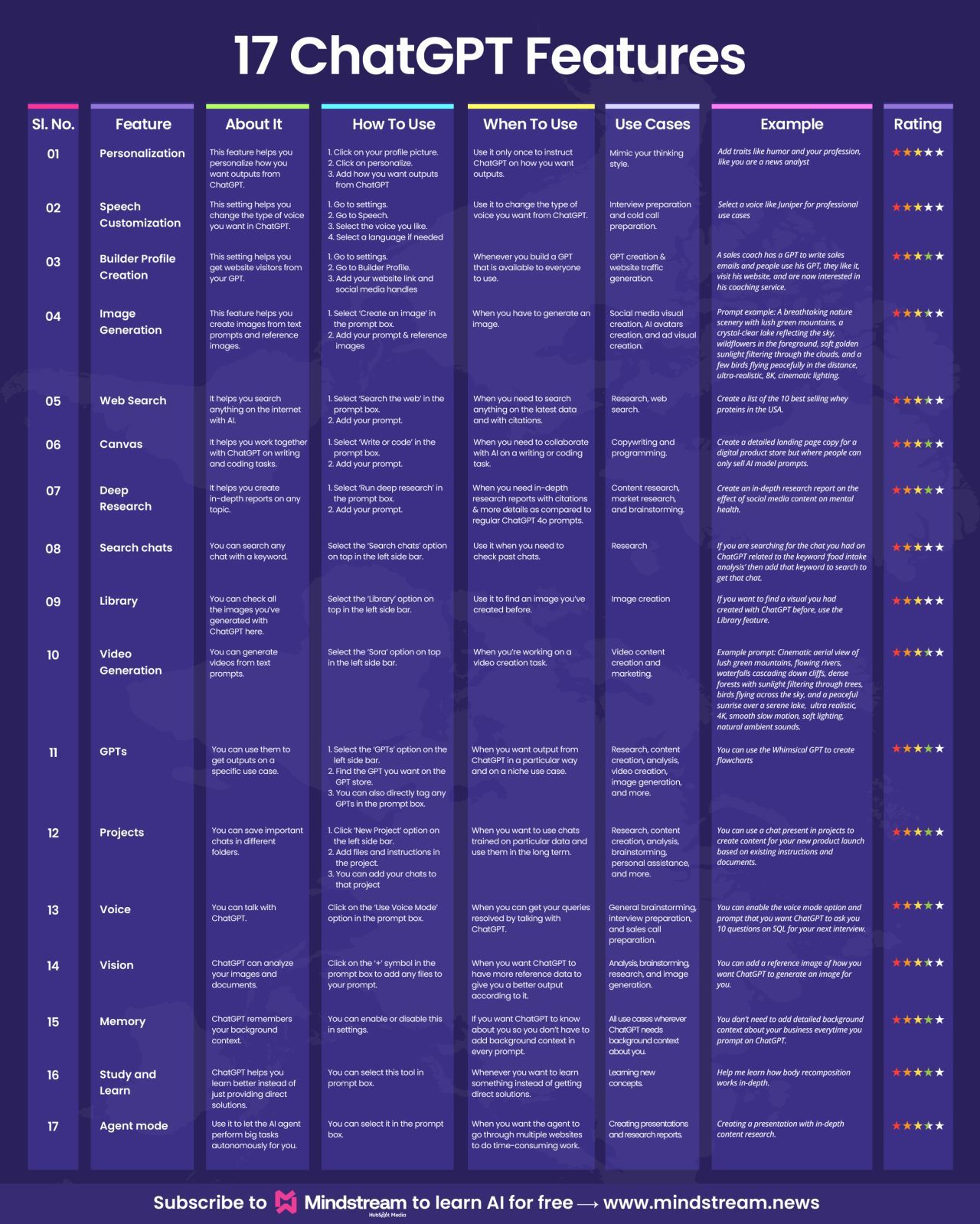
They frame the real time savings as setup, not typing speed. When you use Personalization and Builder Profiles, you stop rebuilding your preferences every time you open a new chat. Your tone, your structure, your goals can be baked in, so the first output is closer to “ready” instead of “starting point.”
Visual Creation and Asset Management
One of the most practical parts of the breakdown is how multi-modal tools remove the constant tab switching. If you need a mockup, a simple image, or a visual concept, you can generate it right where you are writing. If you already have a reference image, you can use that too, which makes the result feel less random and more consistent.
They also call out the Library feature as an underrated productivity win. It sounds small until you have generated twenty visuals and you cannot remember which chat had the good one. A central place to review what you have made saves you from the “where did that file go” spiral.
Deep Research and Collaborative Interfaces
For heavier projects, the creator highlights Canvas and Deep Research as the real shift in workflow. Canvas matters because it changes the shape of the work. Instead of scrolling through a long chat, you can see the whole draft or the whole code block, then iterate without losing the thread.
Deep Research and Web Search, when used intentionally, turn the tool into an analyst that gathers and organizes information for you. The value is not just speed, it is attention. You can hand off the collecting and comparing, then spend your brainpower on decisions, framing, and strategy.
Customization and Voice Interaction
The post also covers smaller features that add up across a week. Speech and voice options let you brainstorm while walking, driving, or pacing around your office. That is a different kind of productivity, because it removes the “I need to be at my keyboard” constraint.
Search chats is another quiet hero. Being able to pull up a past output by keyword prevents you from recreating work you already paid for with your time. Pair that with Personalization, and you get consistent formatting and tone without rewriting the same instructions every session.
Other awesome AI guides you may enjoy
The Trap of Feature Overload
The smartest warning in the original post is not to force every feature into every workflow. That is how you turn a helpful tool into a messy cockpit. The point is awareness and timing.
Know what exists, then pick the one feature that removes your current bottleneck. Use chat for quick thinking, Canvas for building, Deep Research for gathering, and the Library for keeping assets from disappearing.
Credits to Adam Biddlecombe